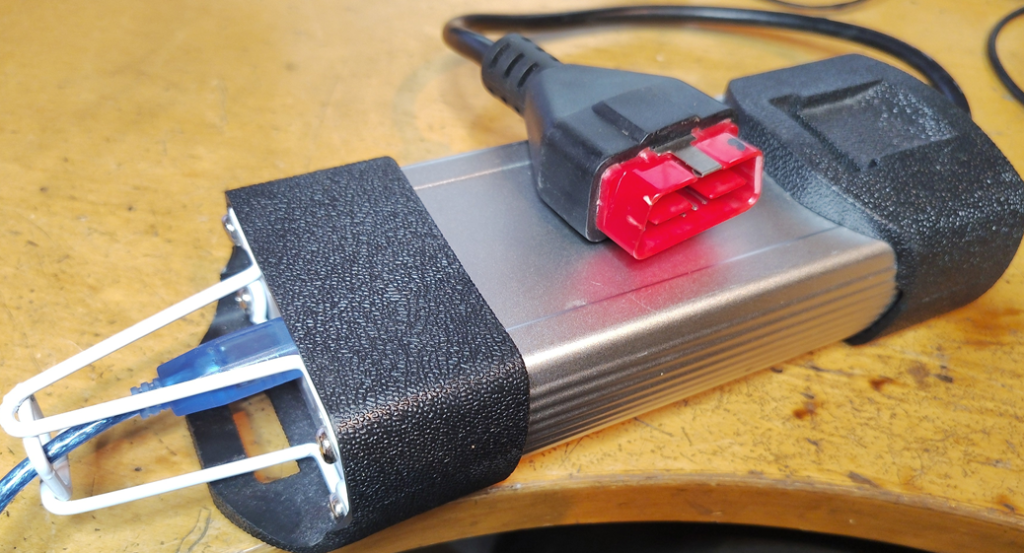
Follow these instructions to install the x64 drivers required by Windows 11 for the iconic RTL2002 Renault CAN Clip probe.
Disable driver signature enforcement in Windows 11. This is necessary because obtaining a signature for the drivers from the Windows Hardware Dev Center would cost several hundred euros per year.
Step 1: Open Command Prompt as an administrator

1. Click the Windows Start menu (or press Win + S).
2. Type "cmd" into the search bar.
3. Right-click "Command Prompt" in the search results and select "Run as administrator."

Step 2: Enable test mode

1. In the black window that appears, type the following command and press Enter:
bcdedit /set testsigning on
Use code with caution.
2. A message should appear on the screen: "The operation completed successfully."
3. Restart your computer.
Download and extract the driver installation package: https://kivijakola.fi/share/clip/RLT2002-x64-setup.zip
Connect the RTL2002 to the computer’s USB port.
Run RLT2002-x64-setup.exe.
CAN and ISO controllers appear in Device Manager

Install other software. CAN based systems are working directly in x64. Old ISO communication systems using ASDE need more work to run in modern 64 bit OS.
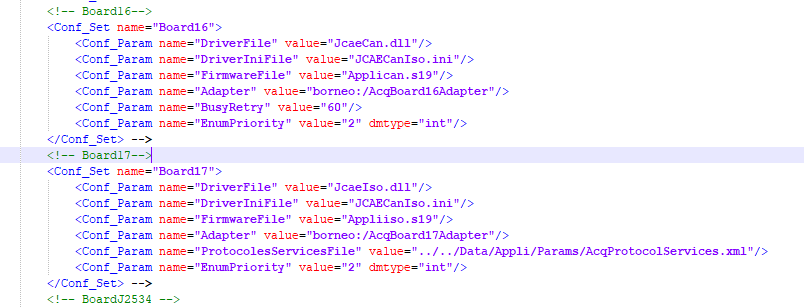
Check that C:\CLIP\Config\probesConfiguration.xml has Board16 and Board17 enabled:
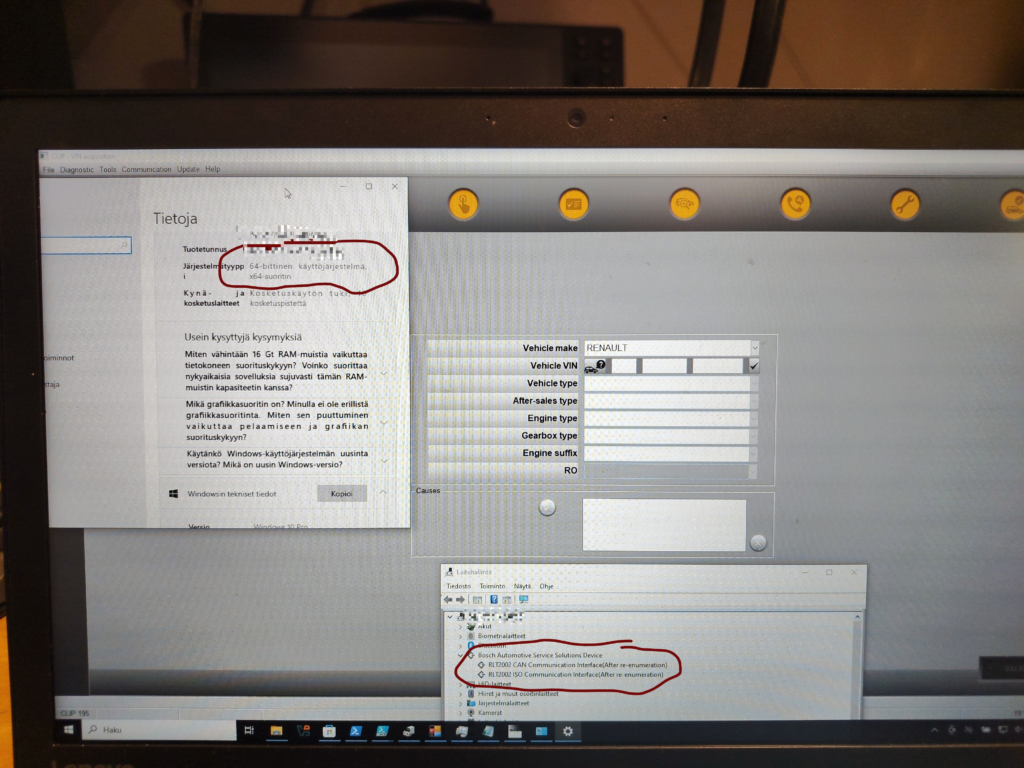
USB dongle picture is appearing
Clip is trying to connect ISO communication target. That mode is using very old 16 bit software. 64x Windowses are not able to execute 16 bit software.
Running ASDE with Winevdm emulator
Download ready compiled binary package https://kivijakola.fi/share/clip/winevdm_release_28_10.zip. Extract it somewhere in your harddisk can clik install. You have now (hopefully) working 16 bit emulator that can without extra work run 16 bit windows binaries and asde.exe.
Update c:\asde\asde.vbs with this zip content:https://kivijakola.fi/share/clip/Start_asde_normally_x64.zip In x64 clip installation configures to start ASDE in Citrix session. We are going to start it ”normally”.
Start Clip and conifigure with ISO communication car parameters. Tested with Clip version v202.
Winevdm for Can Clip fork source codes repository: https://github.com/kivijakola/winevdm-renault-can-clip
Use next if emulator is not working
RUN ASDE.EXE in 32bit VM and use rest of Clip + drivers in x64 OS
Install Oracle Virtualbox
Download XP Virtualbox image: https://archive.org/details/xp51_20191108
Map C:\ASDE to VM shared folder anf map to drive X:
To add a shared folder to a Windows XP guest in Oracle VM VirtualBox, install Guest Additions and configure the shared path in the VirtualBox settings.

Step 1: Install VirtualBox Guest Additions

1. Start your Windows XP virtual machine.
2. In the top VirtualBox menu, click Devices > Insert Guest Additions CD image.
3. Open My Computer inside Windows XP and run the VirtualBox Guest Additions installer.
4. Follow the prompts to finish installation, then reboot the virtual


Step 2: Add the Shared Folder in VirtualBox Settings

1. Make sure your Windows XP virtual machine is powered on or selected in VirtualBox Manager.
2. Go to Settings > Shared Folders (or Devices > Shared Folders > Shared Folder Settings from the top window menu).
3. Click the Add shared folder icon (a folder with a green plus sign).
4. For Folder Path, browse and select the folder on your host computer.
5. For Folder Name, type a short name without spaces (spaces can cause errors).
6. Check Auto-mount and Make Permanent (or Make Global), then click OK.

Step 3: Access the Shared Folder in Windows XP

• Option A via My Network Places:
	1. Open Start > My Computer > My Network Places.
	2. Double-click Entire Network, then VirtualBox Shared Folders, and select your shared folder (\\vboxsvr\[sharename]).
• Option B via Map Network Drive:
	1. Open My Computer, go to the Tools menu, and select Map Network Drive.
	2. Choose a drive letter X: and browse to My Network Places > Entire Network > VirtualBox Shared Folders.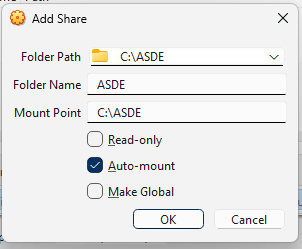
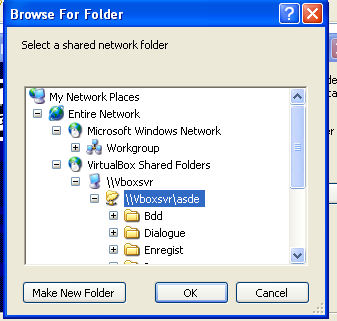
You should now have x64 ASDE folder mapped to VM shared drive and files visible there
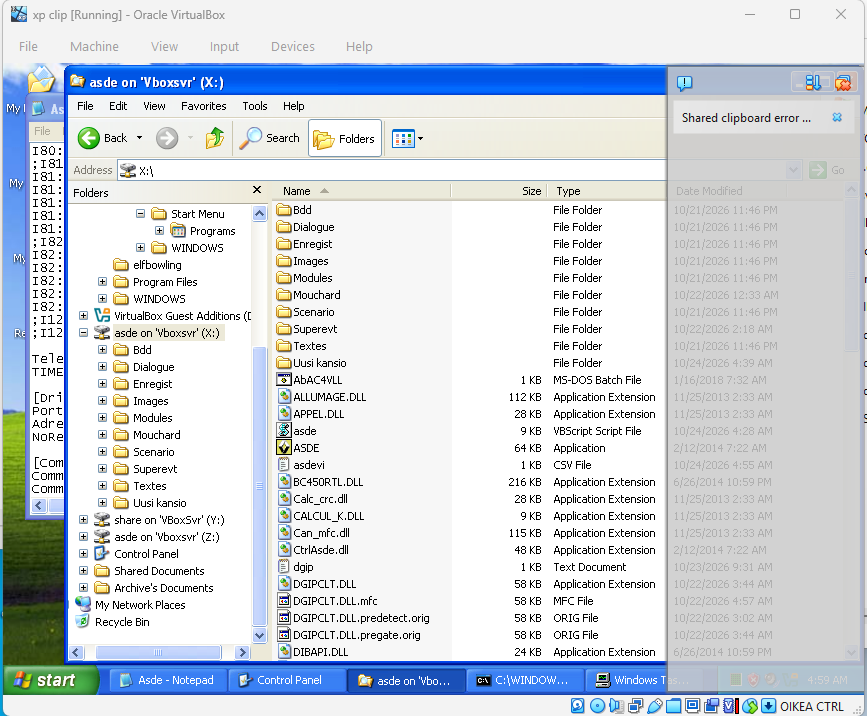
Copy files to virtual box C:\windows
C:\Windows\Asde.ini — Comm_HC16_Drv=DGIPCLT.DLL, [DriverDistant] PortTCPIP=8001
C:\Windows\Asde_Renault.ini (and Asde_Dacia.ini if you use Dacia)
Check that you are having IP connection to x64 IP address and firewall is not blocking port 8001.
Edit VM C:\Windows\Asde.ini. Set following settings:
[DriverDistant]
PortTCPIP=8001
AdresseTCPIP=<x64 LAN IP>
You may now start session with previously given Clip parameters with command in cmd window:
asde.exe initdbox 1Auto Start ASDE session
Extract files from this package to c:\ASDE https://kivijakola.fi/share/clip/ASDE_autostart.zip
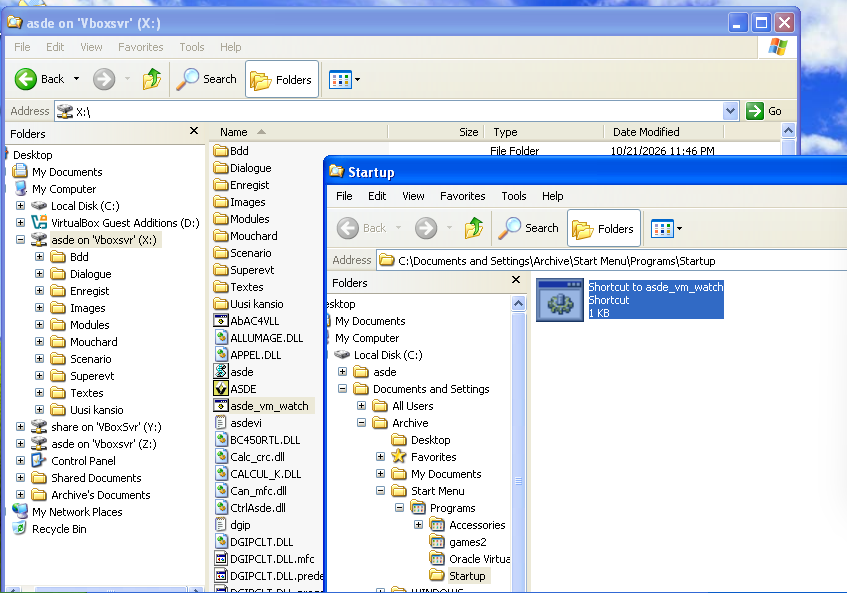
Create VM x:\asde_vm_watch.bat to startup folder to start listener automatically when VM starts. If you mapped folder to some other drive than X:, edit also bat content respectively.
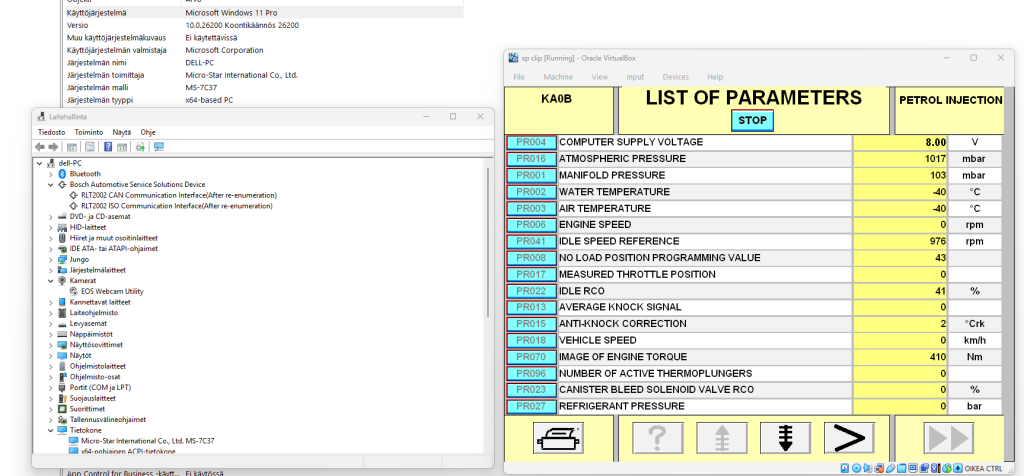
Connect probe to ISO based vehicle, start Clip, Enter VIN and click COMPUTER TEST
Registration issue, Serial number is showing ”to be filled by O.E.M”
Value is fetched from system BIOS settings. Use for example AMIDEWINx64.EXE to update System SKU number to some real value. Boot computer to get Windows refreshing internal values.
Error: DglpSvr DLL non trouvee: isodrv.dll when starting ISO remote session
Install Visual C++ 2008 Redistributable (x86)